


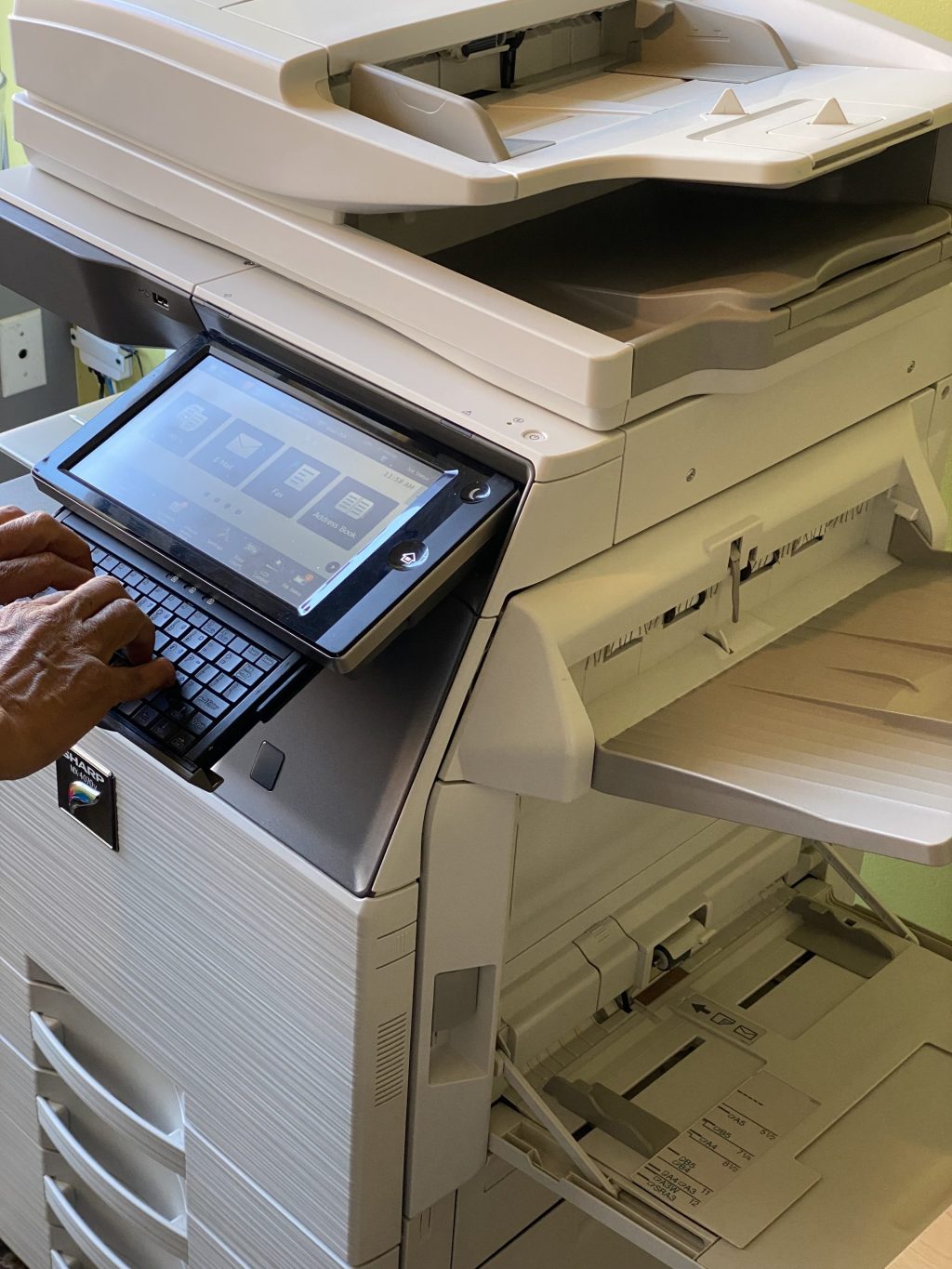
Common Printer Issues and How to Fix Them
Printers can sometimes be a headache, but most issues have simple solutions. Here’s a handy guide to help you troubleshoot some of the most common printer problems.
1. Paper Jams
Issue: Paper jams are a frequent problem caused by misaligned paper, using the wrong paper size, or overfilling the tray.
Solution:
- Ensure you’re using the correct paper size and type for your printer.
- Gently remove any jammed paper by pulling it in the direction of the paper path to avoid damaging internal parts.
2. Poor Print Quality
Issue: Prints may come out blurry, faded, or streaky, often due to low ink levels, clogged print heads, or incorrect print settings.
Solution:
- Check the ink or toner levels and replace any cartridges that are low or empty.
- Run a cleaning cycle from your printer’s maintenance menu to clear clogged print heads.
- Check out our page to see if your sharp toner is compatible with your machine.
3. Printer Not Responding
Issue: Your printer might not respond due to connectivity issues with your computer or network.
Solution:
- Ensure the printer is properly connected to your computer via USB or network.
- Restart both the printer and the computer to refresh the connection.
4. Slow Printing
Issue: Slow print times can disrupt office productivity, often caused by high-resolution settings or network congestion.
Solution:
- Clear out any large print jobs that may be stuck in the queue.
- Reduce print quality for standard documents to speed up the printing process.
5. Error Messages
Issue: Printers may display confusing error messages or codes, leaving users unsure of the problem.
Solution:
- Consult the printer’s user manual or the manufacturer’s website to decode error messages.
- Try turning the printer off, waiting a minute, and then turning it back on to reset and resolve minor errors.
6. Network Connection Issues
Issue: Wireless printers may struggle to maintain a stable connection to the network.
Solution:
- Make sure the printer is within range of the router and that the Wi-Fi signal is strong.
- Reconnect the printer to the network through the settings menu.
For more guides, check out Sharp Electronic’s Youtube tutorial playlist!